
Step 3 - Unity team tools theme manager Skinning Account Management Flow
Overview
The purpose of this guide is for game makers to customize the look and feel of an existing Beamable Feature Prefab.
This guide includes everything needed to use the Skinning feature in the "Beamable SDK for Unity". Or watch this video.
Steps
Follow these steps to get started:
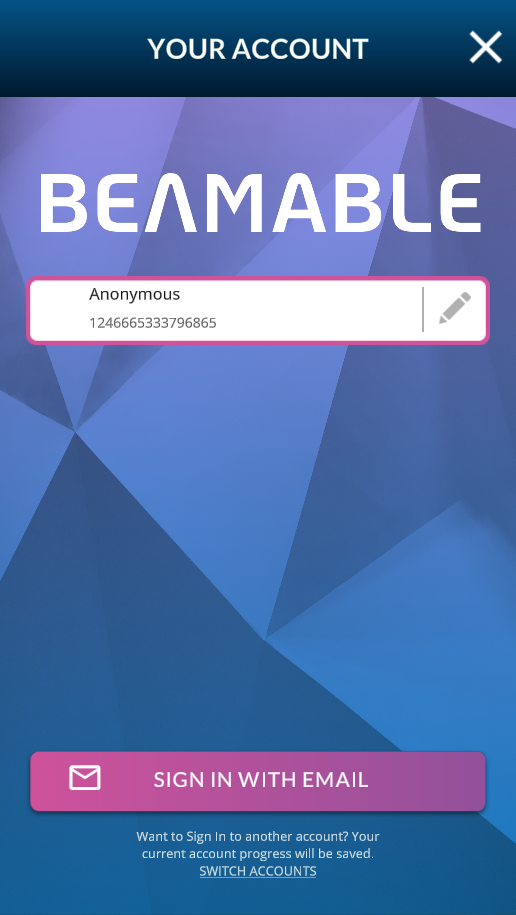
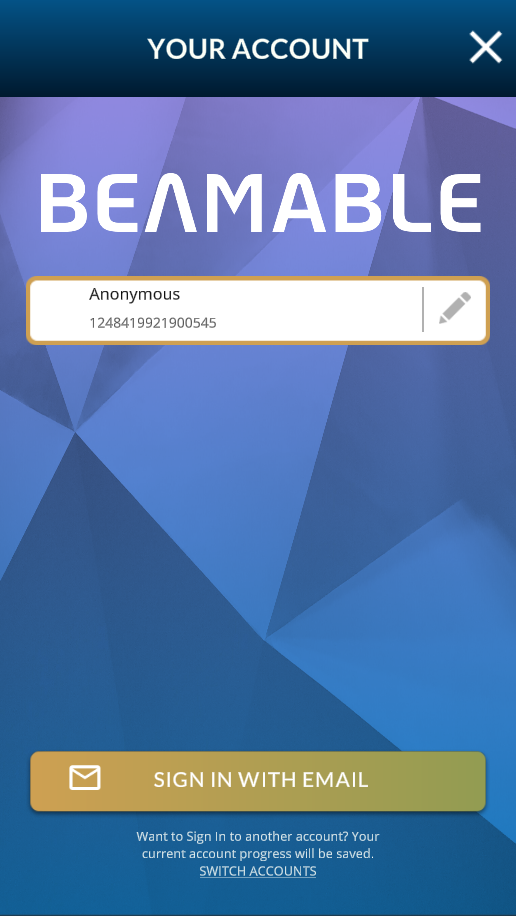
Here the sign-in button will be restyled from blue background to a custom color.
RequirementsThe content below continues directly after Account Management Flow - Prefab. Be sure to complete those steps before continuing.
Step | Detail |
|---|---|
| • Unity → Window → Beamable → Open Theme Manager Result: Initially, the Theme Manager window shows very little content within it because nothing is selected  |
| • Select this Prefab in the Unity Hierarchy Window Result: Now the Theme Manager window shows style content for the selected item 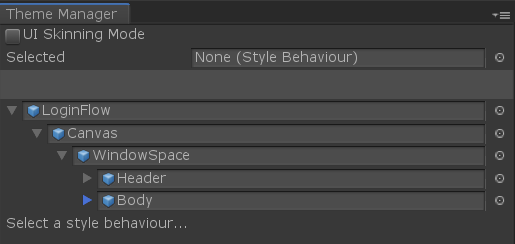 |
| • Select the "ButtonPrimary" GameObject in the Unity Hierarchy Window 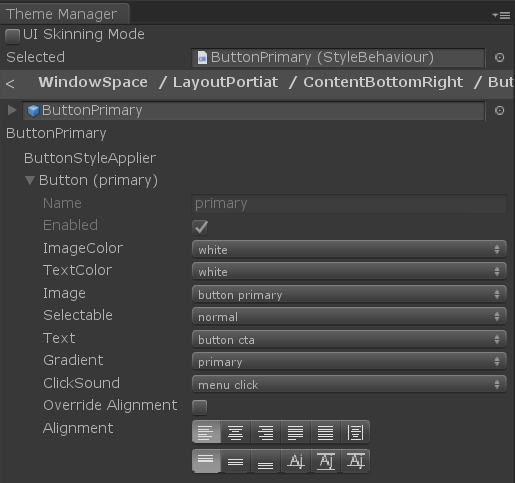 |
| • Select the gradient background in the Content Manager Window 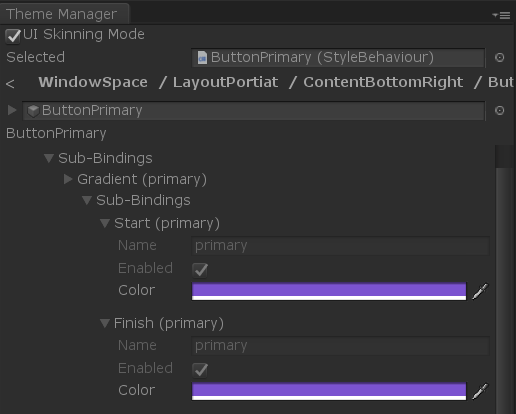 |
| • Set the color to yellow 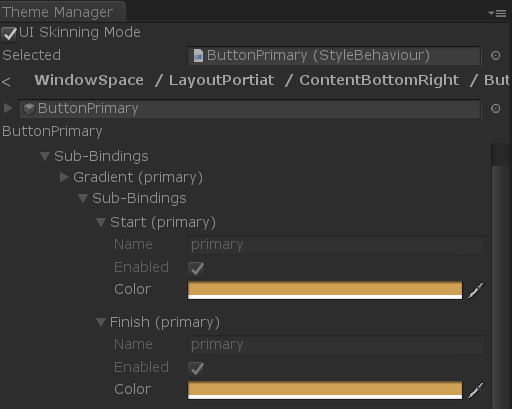 |
User Interface
When set up properly, the player's user interface in the game project will be as follows:
Before Customization | After Customization |
|---|---|
 |  |
Updated 5 months ago