
Leaderboards - Guide
Allow player to manage leaderboard [SOCL-Leaderboards-02]
Variations On A ThemeChoose the Leaderboard setup that works best for your needs;
• Leaderboard (Standard) - Shows non-animated score values. See Leaderboards - Guide for more info
• Leaderboard (With Interpolation) - Shows animated score values. See Leaderboards - Code for more info
The purpose of this guide is to allow the player to see the Leaderboard.
Steps
Follow these steps to get started:
Step 1. Create Leaderboard Content
The Leaderboard content is required to properly populate the Leaderboard UI.
Step | Detail |
|---|---|
| • Unity → Window → Beamable → Open Content Manager |
| 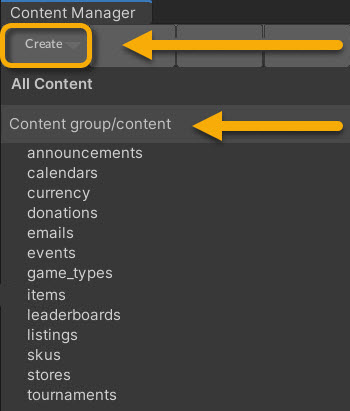 • Select the content type in the list • Press the "Create" button • Populate the content name |
| • Unity → Window → General→ Project |
| • Search by the name given in step #3 |
| 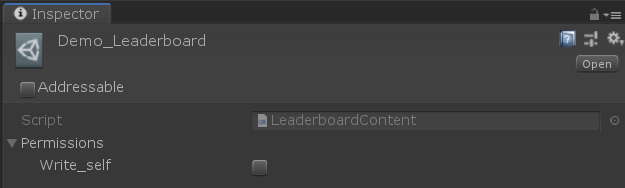 Note: The |
| • Unity → File → Save Project Best Practice: If you are working on a team, commit to version control in this step. |
| • Press the "Publish" button in the Content Manager Window |
Beamable Security & PermissionsEach
Leaderboardcontent object asset includes awrite_selffield.• True: Allows for client-authoritative score updates. Benefits include ease-of-use for game makers and is ideal for a game which can tolerate the occasional cheater. It is hackable.
• False: Allows for server-authoritative score updates and requires additional setup via Microservices. Benefits include higher system security and is ideal for a game which requires that. It is less hackable.
Step 2. Add Leaderboard Flow Prefab
Step | Detail |
|---|---|
| • Unity → Window → Beamable → Open Beamable Toolbox |
| • Drag this Prefab from the Beamable Toolbox Window to the Unity Hierarchy Window |
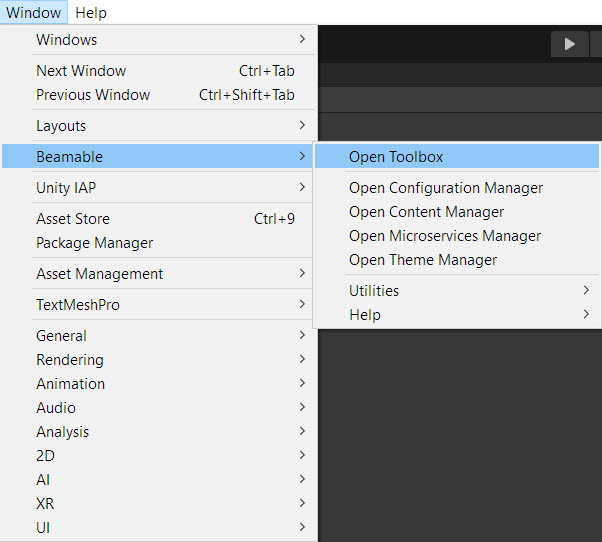
The “Beamable” Menu
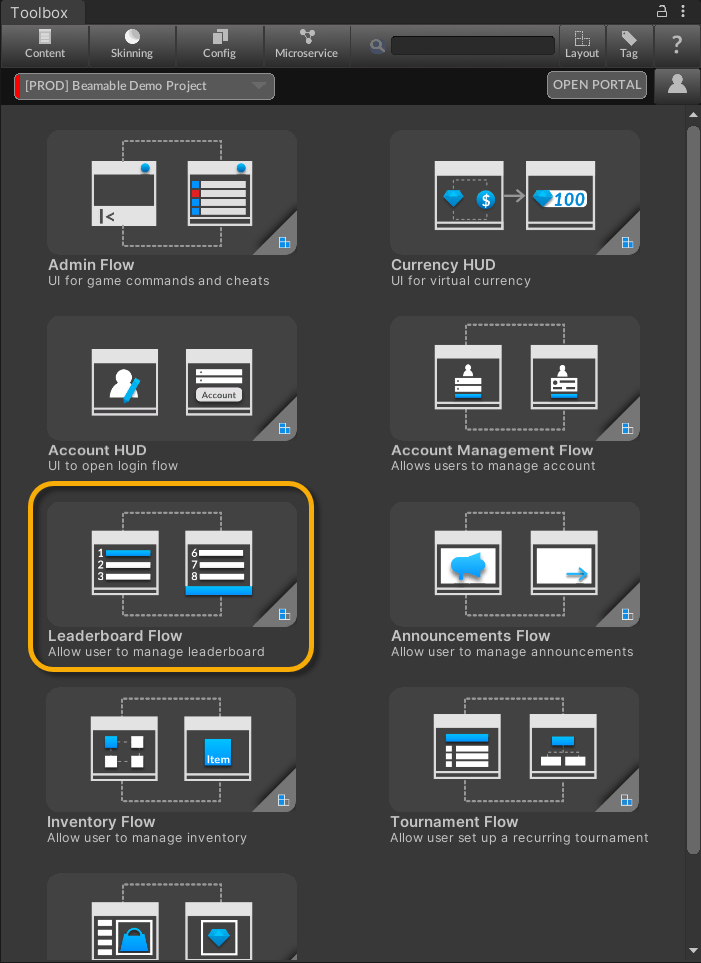
The Beamable "Leaderboard Flow" in the Beamable Toolbox Window
Step 3. Reward Score via Leaderboard
To appear on the Leaderboard, a player must have a competitive score.
During Development
The Portal allows the game maker to add/view/edit a player's score. This is especially helpful during development.
See Leaderboards - Guide » Managing Leaderboard Via Portal for more info.
During Production
To properly reward the players with score in production code, use custom C#. See the following example for inspiration.
Code
Beamable SDK Examples• The following example code is available for download at GitHub.com/Beamable_SDK_Examples
using Beamable.Common.Leaderboards;
using UnityEngine;

namespace Beamable.Examples.Services.LeaderboardService
{
    /// <summary>
    /// Demonstrates <see cref="LeaderboardService"/>.
    /// </summary>
    public class LeaderboardServiceExample : MonoBehaviour
    {
        //  Fields  ---------------------------------------
        [SerializeField] private LeaderboardRef _leaderboardRef = null;
        [SerializeField] private double _score = 100;

        //  Unity Methods  --------------------------------
        protected void Start()
        {
            Debug.Log($"Start()");

            LeaderboardServiceSetScore(_leaderboardRef.Id, _score);
        }

        //  Methods  --------------------------------------
        private async void LeaderboardServiceSetScore(string id, double score)
        {
            var beamContext = BeamContext.Default;
            await beamContext.OnReady;

            Debug.Log($"beamContext.PlayerId = {beamContext.PlayerId}");

            await beamContext.Api.LeaderboardService.SetScore(id, score);

            Debug.Log($"LeaderboardService.SetScore({id},{score})");
        }
    }
}
Advanced
This section contains any advanced configuration options and workflows.
Managing Leaderboards Via Portal
The Portal allows the game maker to manage Leaderboards.
Step | Detail |
|---|---|
| • See Portal for more info |
| 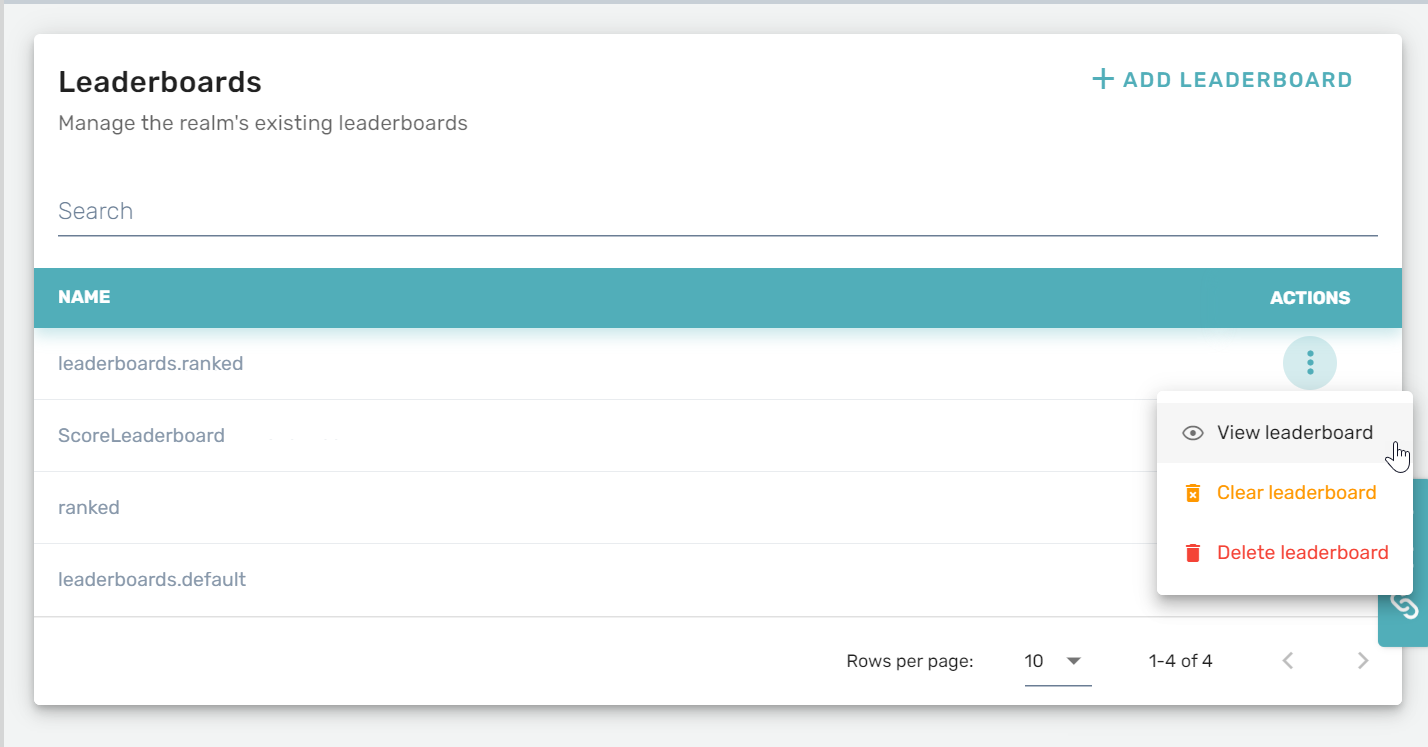 |
| 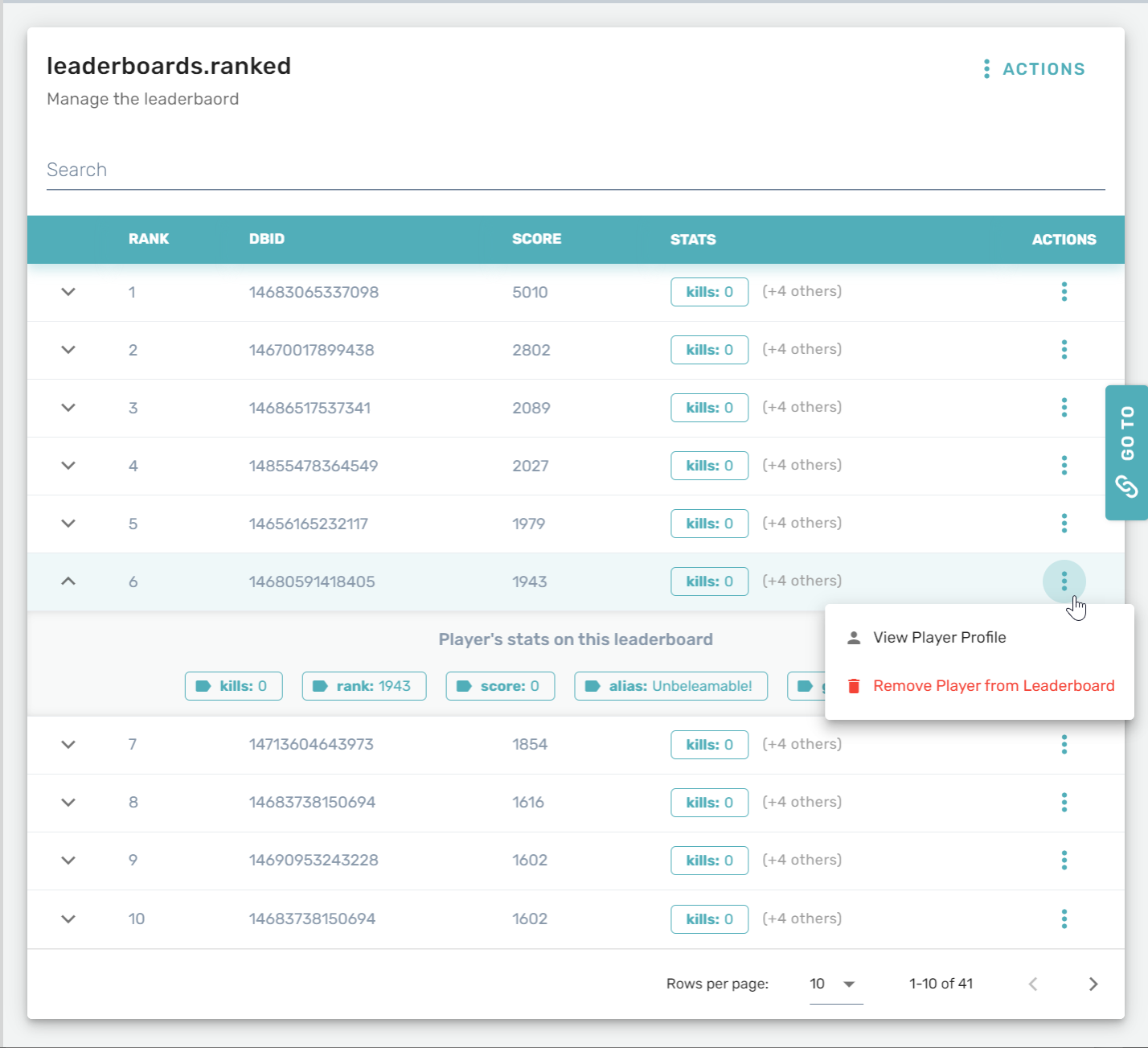 Available Operations Note: Some of these operations cannot be undone. |
Updated 5 months ago