
Account Management Flow - Prefab
UI to manage player accounts [IDEN-AccountMgmt-Prefab]
This guide includes everything needed to use the Account Management Flow Feature Prefab in the "Beamable SDK for Unity". Or watch this video.
User Experience
When set up properly, the user experience in the game project will be as follows:
Steps
Follow these steps to get started:
Step | Detail |
|---|---|
| • Unity → Window → Beamable → Open Toolbox |
| • Drag this Prefab from the Beamable Toolbox Window to the Unity Hierarchy Window |
| • Drag this Prefab from the Beamable Toolbox Window to the Unity Hierarchy Window Result: The Unity Hierarchy Window contains both prefabs. 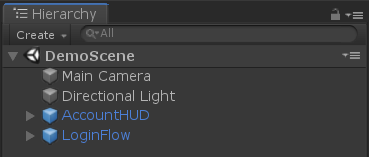 |
|  • Select this Prefab in the Unity Hierarchy Window Result: Now this UI will not be initially visible to player at runtime |
| 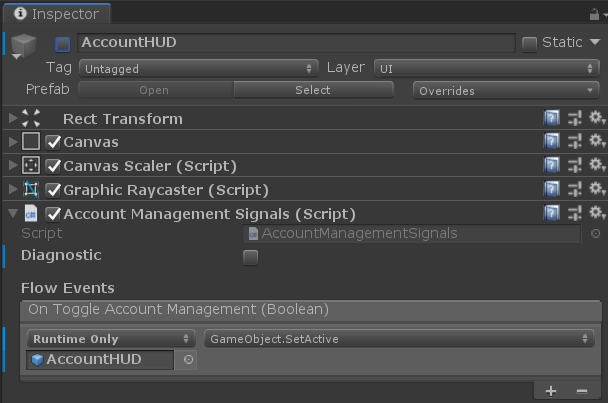 • Select the "Account HUD" Prefab in the Unity Hierarchy Window Result: Now this UI will be visible to player at runtime after the Beamable system is ready |
User Interface
When set up properly, the player's user interface in the game project will be as follows:
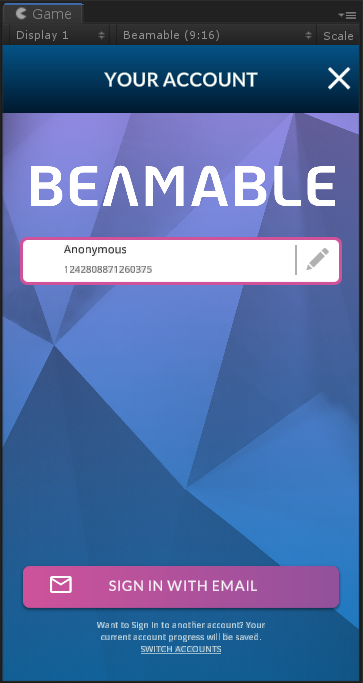
The Beamable "Account Management Flow" UI in the Unity Game Window
From here, the player can edit account details including account name and account avatar.
The player can switch accounts and sign in with various methods. See the Identity section for more info.
When finished, the player can close the Account Management Flow window and return to the game-specific content.
Updated 5 months ago